Custom VDI Client OS with debian minimal + PVE_VDIClient lufy May 19, 2026 1. install debian minimal os 2. install necessary tools ``` apt update apt install -y --no-install-recommends xserver-xorg xinit openbox virt-viewer python3-pip git ``` 3. setup vdiclient ``` git clone https://github.com/joshpatten/PVE-VDIClient.git # Alternatively, you could use version optimized with adding setting pannel (for pve host setting), power button. # git clone https://github.com/lufy90/PVE-VDIClient.git cd PVE-VDIClient # Install python dependencies manually for better troubleshooting pip3 install proxmoxer PySimpleGUIQt requests customtkinter --break-system-packages ``` 4. Create /etc/vdiclient/vdiclient.ini ``` [General] pvesserver = 192.168.1.100 ; Your PVE IP pveport = 8006 [SpiceProxyRedirect] # CRITICAL: Replace 'pve-hostname' with your actual Proxmox node name pve-hostname:3128 = 192.168.1.100:3128 ``` 5. autostart: /etc/xdg/openbox/autostart ``` # Disable screen blanking/power management for a kiosk feel xset s off xset -dpms xset s noblank # Launch the VDI client (adjust the path to where you stored it) python3 /opt/PVE-VDIClient/vdiclient.py & ``` change system editor to vim (I didn't good at using nano) ``` update-alternatives --config editor ``` Set display for tty1 ``` systemctl edit getty@tty1 ``` Add service -- be careful, the content need to be added to the specific area, look at the comment carefully ``` [Service] ExecStart= ExecStart=-/sbin/agetty --autologin root --noclear %I $TERM ``` 6. auto start X: /root/.profile, add ``` if [ -z "$DISPLAY" ] && [ "$XDG_VTNR" -eq 1 ]; then exec startx fi ``` 7. make cursor to middle, change /etc/default/grub ``` GRUB_CMDLINE_LINUX_DEFAULT="quiet splash vt.global_cursor_default=0" ``` Update grub.cfg ``` grub-mkconfig -o /boot/grub/grub.cfg ``` 8. reboot the systtem, go to the thin client OS. 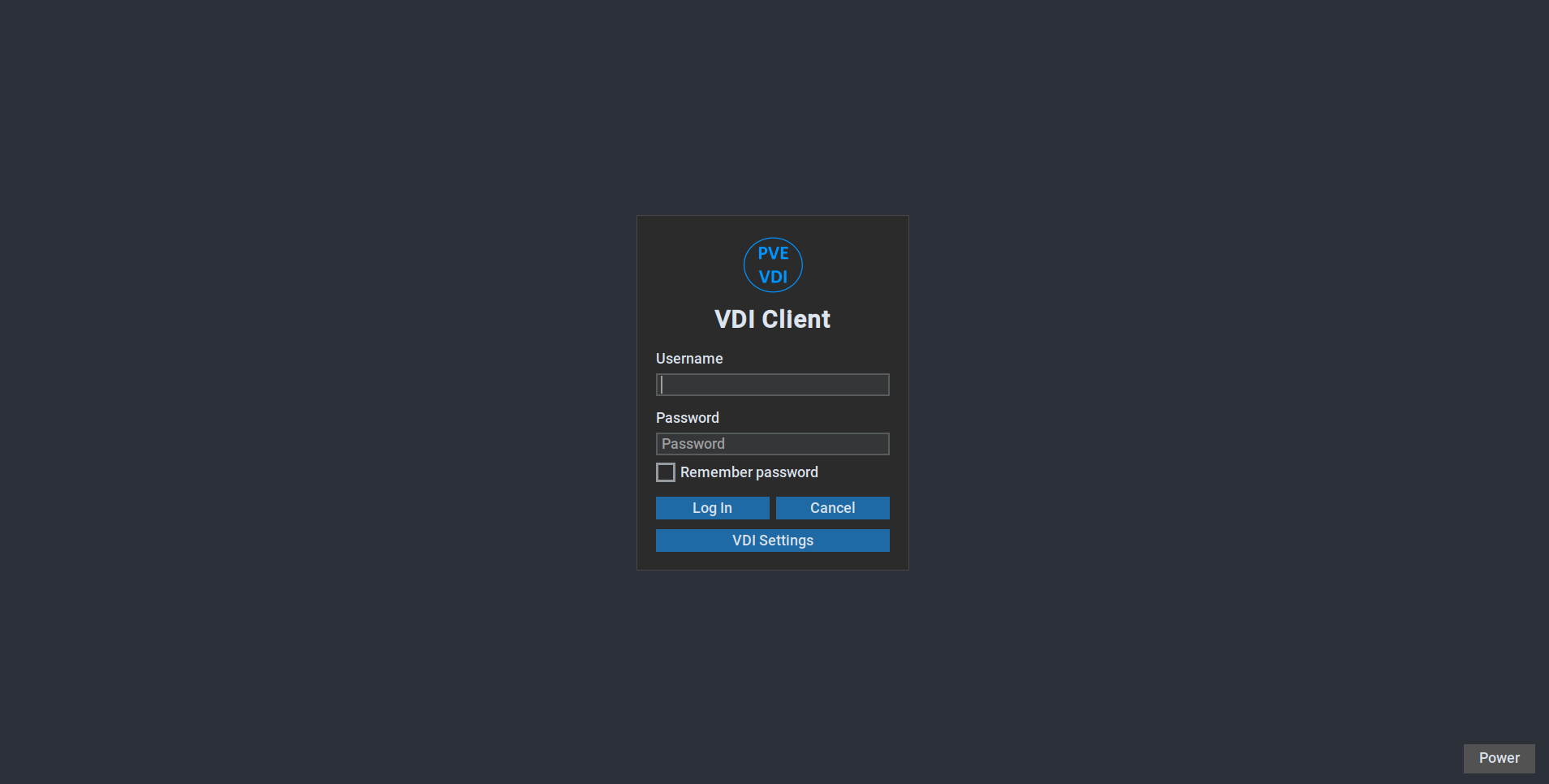 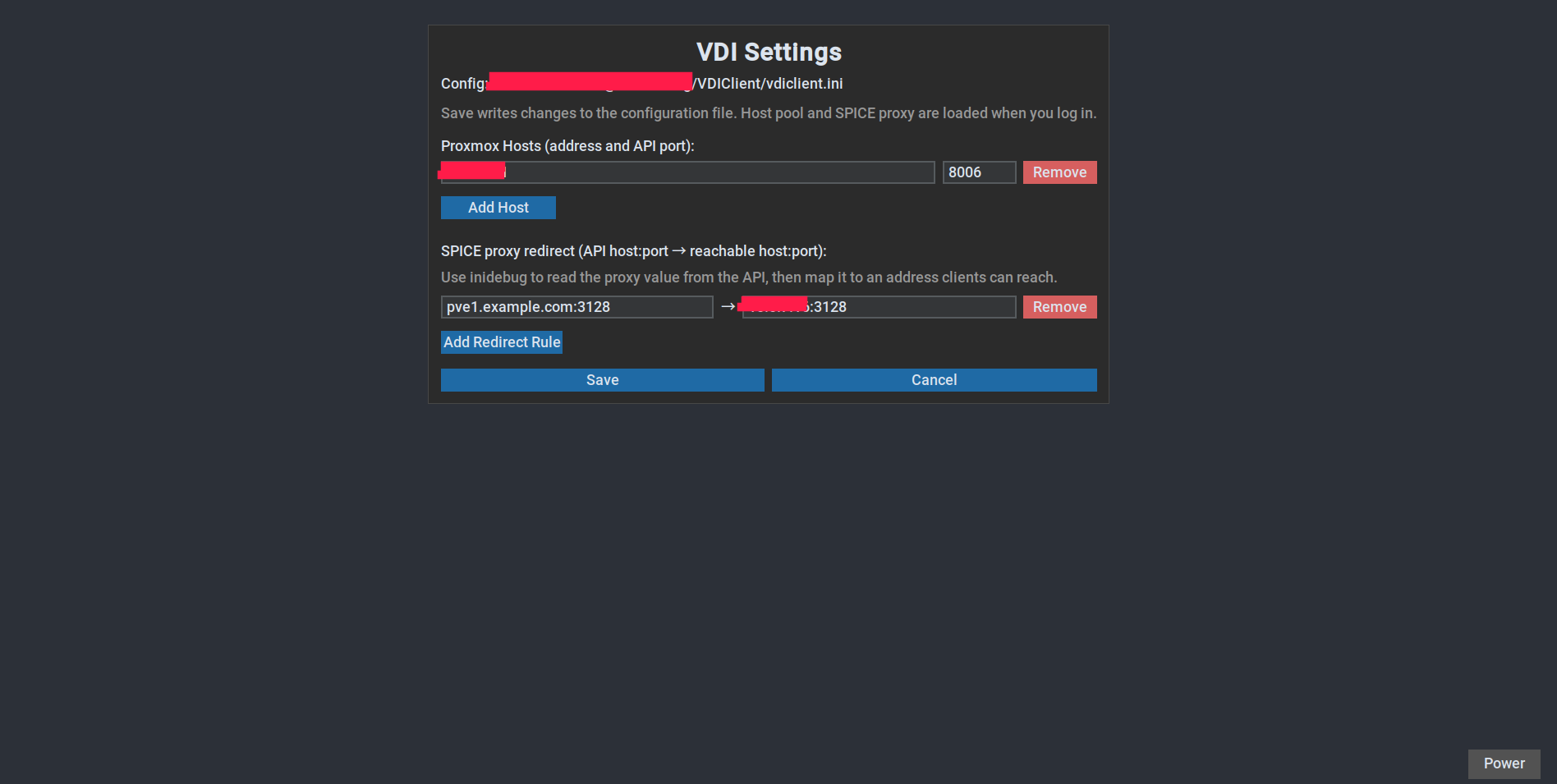 Attached Files 2 Show Files Images 截图_选择区域_20260519101517.png View 截图_选择区域_20260519095152.png View


Comments (0)
Leave a Comment
No comments yet. Be the first to comment!